

AI
Going Cold Turkey
What happens when the Claude bill stops being subsidised?
· 6 minutes read
Dominic Farrington
Last updated: Feb 13, 2026
Written by Kyle Getty · 6 minutes read

On-call shouldn’t start with archaeology at 2am. This post shows how to build an AI-powered incident response system that kicks off the moment an alert fires, pulls the runbook, queries the logs, reviews the latest commits and feature-flag changes, then drops a Slack-ready root-cause teaser with evidence attached. The trick is a clean hybrid: AI for reasoning and synthesis, APIs for facts, all stitched together with structured, typed outputs so the whole workflow is autonomous.
Modern DevOps teams face a critical challenge: when production incidents occur, engineers need to quickly analyze logs, review recent code changes, and identify root causes, often in the middle of the night. What if AI could handle the initial investigation automatically?
This post explores three key patterns for integrating AI into DevOps workflows, using a real-world incident response system as an example.
The most powerful way to use AI isn’t just getting text responses, it’s getting typed, structured data that your system can act upon. By treating AI as a strongly-typed object model, you can ensure consistent, parseable results.
OpenAI for example provides structured model outputs with Agent Client Protocol we can build a C# based model to interact with the Augment CLI Auggie
This allows us to leverage the benefits of the Augment Context Engine when doing things like code analysis. While also abstracting how we interact with an agent so we can focus on the needed orchestration.
Here’s how to transform free-form AI agent responses into structured objects this uses Auggie with ACP. Using System.Text.Json schema exporter we can easily fold in the expected output into our prompt.
public async Task<T> RunAsync<T>(string instruction, CancellationToken cancellationToken = default)
{
    var typedInstruction = BuildTypedInstruction(instruction, typeof(T));
    var response = await RunAsync(typedInstruction, cancellationToken);
    return ParseTypedResponse<T>(response);
}

public static string BuildTypedInstruction(string instruction, Type responseType)
{
    var sampleFormat = GetSampleJsonFormat(responseType);

    return $"""
        {instruction}

        IMPORTANT: Provide your response in this EXACT format:

        <augment-agent-message>
        [Optional: Your explanation or reasoning]
        </augment-agent-message>

        <augment-agent-result>
        {sampleFormat}
        </augment-agent-result>

        The content inside tags must be valid JSON that matches this structure:
        {GetTypeDescription(responseType)}
        """;
}When analyzing code for potential issues, instead of parsing unstructured text, we define a clear model:
public record CodeIssueSummary
{
    public string? IssueSummary { get; init; }
    public string? CommitMessage { get; init; }
    public string? CommitHash { get; init; }
}
Then request it directly from the AI:
public Task<List<CodeIssueSummary>> GetCodeAnalysis(string repositoryPath, string recentCommits)
{
    var codeAnalysisPrompt = $"""
        Analyze the code at {repositoryPath}. Identify any bugs or issues that could have caused the alert.
        Only consider changes introduced by the following commits.
        Commit hashes: {recentCommits}
        """;

    return _agent.RunAsync<List<CodeIssueSummary>>(codeAnalysisPrompt);
}
The AI returns a strongly-typed list of issues, complete with commit hashes and summaries. Ready to be displayed in Slack, stored in a database, or fed into downstream systems.
Key Takeaway: By constraining AI output to match your data models, you get the intelligence of AI with the reliability of typed systems.
Not every problem needs AI. Sometimes, a well designed API provides exactly the context you need; faster, cheaper, and more reliably.
Consider this incident response workflow:
private ImmutableList<IIncidentTask<IncidentResponseContext>> _taskList =>
ImmutableList.Create(
    _tasks.Single(t => t is NotifyInvestigationStarted),
    _tasks.Single(t => t is PlaybookAnalysisTask),        // AI: Generate KQL queries
    _tasks.Single(t => t is ExecuteLogQueriesTask),       // API: Execute queries
    _tasks.Single(t => t is PlaybookSummaryTask),         // AI: Summarize results
    _tasks.Single(t => t is CodeAnalysisTask),            // AI: Analyze code
    _tasks.Single(t => t is FeatureFlagAnalysisTask),     // AI: Check feature flags
    _tasks.Single(t => t is NotifyInvestigationResults)
);
Notice the pattern: AI generates insights, APIs fetch facts.
The ExecuteLogQueriesTask demonstrates this:
public async Task ExecuteAsync(IncidentResponseContext context, CancellationToken cancellationToken)
{
    // Use API to get precise data
    context.MaxAppVersion = await QueryMaxAppVersionAroundAlertAsync(
        context.IncidentContext.StartTimeUtc,
        cancellationToken);

    // Execute AI-generated queries via API
    var playbookResults = await ExecuteKqlQueriesBatchAsync(
        context.PlaybookAnalysisContext.PlaybookQueries,
        context.IncidentContext.StartTimeUtc,
        cancellationToken);

    context.PlaybookAnalysisContext.QueryResults.AddRange(playbookResults);
}
Why not ask AI to “find the app version”?
AI’s role: Generate the right KQL queries based on the playbook and alert context.
API’s role: Execute those queries and return precise data.
// Step 1: AI generates contextual queries
var playbookKql = await _onCallRepository.GetPlaybookKQL(
    playbookContent,
    JsonConvert.SerializeObject(context.IncidentContext));

// Step 2: API executes them against real data
var batch = new LogsBatchQuery();
foreach (var query in playbookKql)
{
    batch.AddWorkspaceQuery(workspaceId, query, timeRange);
}
var response = await _logsQueryClient.QueryBatchAsync(batch, cancellationToken);

// Step 3: AI summarizes the results
context.PlaybookSummary = await _onCallRepository.GetResultsPlaybookSummary(
    JsonConvert.SerializeObject(queryResults));
Key Takeaway: Use AI for reasoning and synthesis. Use APIs for facts and execution.
The final piece is automation: how do you trigger this entire process when an incident occurs?
Modern incident management systems (like Rootly, PagerDuty, or Opsgenie) support webhooks. Here’s how to wire them into Azure DevOps:
resources:
webhooks:
-webhook: webhook
connection: ai-oncall-trigger

variables:
-name: AlertId
value: ${{ coalesce(parameters.webhook.alertShortId, parameters.alertId) }}
When an alert fires, the webhook triggers the pipeline with the alert ID.
steps:
  # 1. Checkout the codebase for analysis
-checkout: repoForAnalysis
persistCredentials:true
path: OnCallRoot/repoForAnalysis
fetchDepth:0

  # 2. Install AI tooling
-script: npm install -g @augmentcode/auggie@latest
displayName:"Install Auggie"

  # 3. Run the incident analysis
  -script:|
      dotnet OnCall.Client.dll \
        --IncidentAnalysis:AlertId=$(AlertId) \
        --OnCallEnvironment:WorkspaceRoot=$(Pipeline.Workspace)/OnCallRoot
env:
AUGMENT_API_TOKEN: $(AUGMENT_API_TOKEN)
RootlyClient__ApiKey: $(RootlyApiKey)
NotionClient__AuthToken: $(NotionClientAuthToken)
LaunchDarklyClient__ApiKey: $(LaunchDarklyClientApiKey)
SlackClient__BotUserAccessToken: $(SlackBotUserAccessToken)All of this happens automatically, within minutes of the alert firing.
The power of AI DevOps comes from combining these three patterns:
The result? Your on-call engineer wakes up to a Slack message that says:
📋Alert Details
Alert Id: AbCd1
Start Time: 2026-01-26T16:17:20.2170000Z
App Version (±30s): 1.1.0
Analysis Summary
Root Cause Overview The alert detected 2 exceptions during the monitoring window (2026-01-26 16:09:12 - 16:14:12 UTC). Both exceptions are SomeException errors occurring when attempting to create data with bad values via the downstream API.
Analysis Summary
Exception Details: • Count: 2 identical exceptions • Type: libraries.downstream.Exceptions.SomeException • Error Message: “Needed value is 0” (HTTP 412 Precondition Failed) • API Endpoint: https://downstream.example/api/someRoute • Timestamp: Both occurred at 2026-01-26 16:09:16 UTC • Service: appService (version 1.1.0) • User Context: userId, itemId
Code Analysis
⚠️Add New Logic for Downstream API (#1234)
Missing validation in method - The new method introduced in commit does not validate that data.NeededValue is greater than zero before calling the downstream API. Commit: someCommitHash
Feature Flag Analysis…
Instead of starting from scratch, they start with context. That’s the promise of AI DevOps.
Want to build your own AI-powered incident response system? The patterns shown here are framework-agnostic and can be adapted to any CI/CD platform, incident management tool, and AI provider.
Software Engineer with 13+ years of experience building highly scalable platforms in Azure. With a passion for helping teams find ways to simplify process and focus on building systems that transparently enhance the development lifecycle.

What happens when the Claude bill stops being subsidised?

After 18 months and ~800 incidents, our Rootly classification fields were mostly empty, no one fills in six drop-downs at 2am.
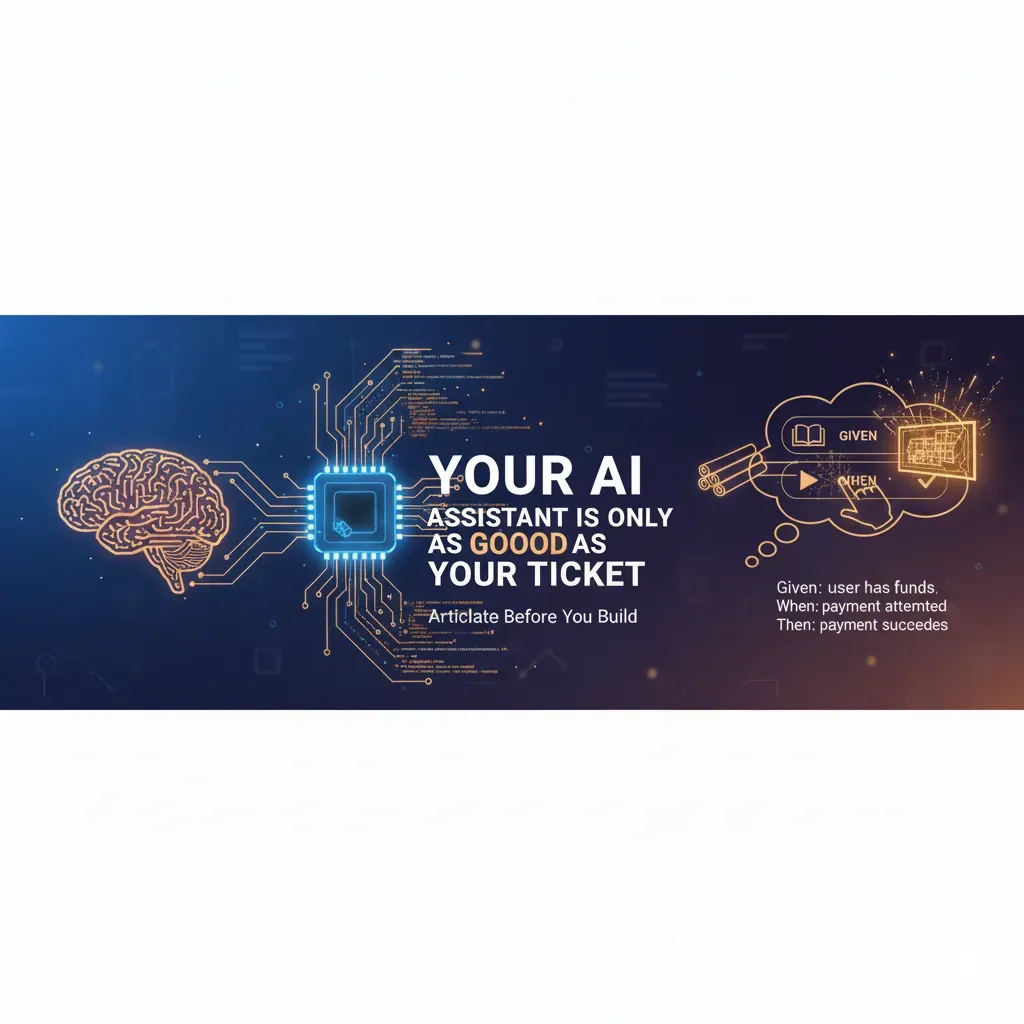
Your AI is only as good as the ticket you hand it.
More in AI